There is no single best tool. Old photos degrade in different ways. A scratch is a different problem than overall fading. Grainy noise requires a different fix than a blurry scan. This guide matches specific tools to specific types of damage. The right choice depends entirely on what is wrong with your picture. We break it down by the problem you see.
Identify What Is Actually Wrong With the Photo
People often use the wrong tool. They try to sharpen an image that needs scratch removal. Or they attempt deep restoration on a photo that just looks dull. This mismatch leads to poor results. The first step is diagnosis. Look closely. Are there physical marks on the print? Has the color simply drained away? Is the image soft from a bad scan? Correct identification saves time and gets you a usable result faster.
The Most Common Types Of Old Photo Degradation
Photos fail in predictable patterns. Knowing these categories helps you communicate with the software. Each AI model is tuned, whether its creators admit it or not, to prioritize one kind of correction over another. The output changes completely based on the input’s primary flaw.
We can group most old photo issues into four basic types:
- Physical damage such as scratches, cracks, and material stains;
- Fading and contrast loss caused by aging and light exposure;
- Blur and softness from poor or low-resolution scans;
- Digital noise and compression artifacts from old files.
The five tools below each address one or two of these problems effectively. They tend to stumble on others. We’ll show you which is which.
1. Renew Photo
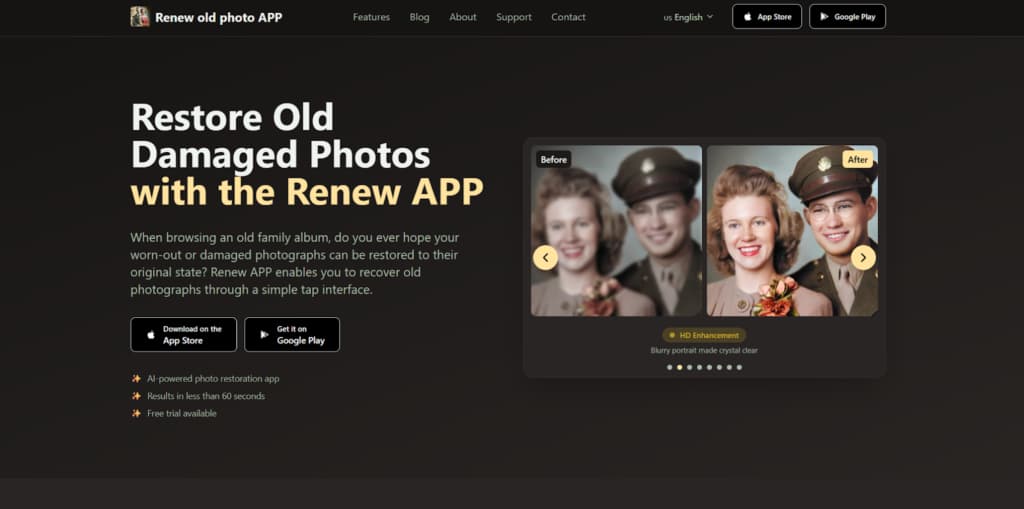
This tool is for physical objects. Use it when you have scanned a printed photograph that shows real surface trauma. Think of a portrait with a deep scratch across a face, or a picture with water stains and cracks in the emulsion. Renew Photo’s algorithm treats the image like a damaged artifact. It tries to rebuild the surface by sampling from intact areas around the defects. It works on the structure of the photo.
How It Repairs Physical Surface Defects
The process is automatic but focused. It looks for linear interruptions and irregular blotches, then paints over them. For overall fading, it stretches the remaining tonal values to recover some depth. It’s a structural fix first.
Its specific actions target material decay:
- Removal of scratches and surface noise;
- Restoration of faded tonal balance;
- Reconstruction of damaged image areas;
- Optional colorization of black and white originals.
The tool performs well on clear, isolated damage. Its limits appear with complex patterns. A detailed textile or a forest scene can confuse the patching logic, creating strange, repetitive textures. Large missing sections are a bigger issue. The AI will fill the void, but the result often looks like an obvious, smudged guess.
2. RetroFix
RetroFix is for visual refresh, not archival repair. The photo isn’t critically damaged. It just looks tired, washed out, or flat. You need it to pop for a digital album or a family chat, and you need it done now. This service is a one-click enhancer. It applies a standard set of global adjustments, including brightness, contrast, saturation, and sharpnes,s all at once with no fine-tuning. The goal is immediate visual appeal.
What It Does in a One-Click Enhancement Pass
The software makes broad assumptions to deliver speed. It treats every image with the same corrective brush, prioritizing a vibrant, clear outcome over historical accuracy. It’s incredibly simple.
You can expect this uniform set of changes:
- Automatic contrast and brightness adjustment;
- General sharpening across the image;
- Quick colorization for digital sharing;
- Fully automated one-step workflow.
You get a livelier picture quickly. The trade-offs are real. Over-smoothing is common, giving skin a plastic feel. Colorization can be garish or simply wrong, turning a grey dress blue or a brown sky teal. Fine details often get lost in the aggressive processing.
3. Nero AI
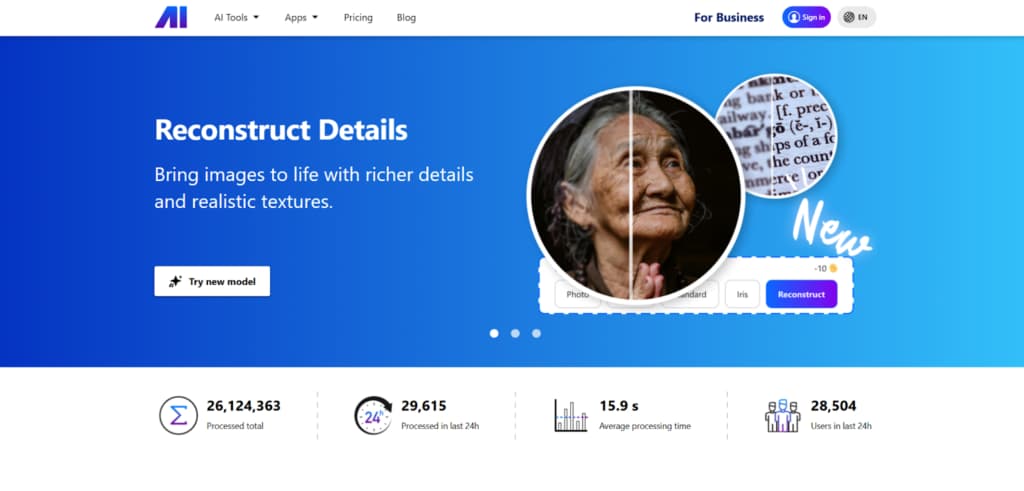
Nero AI is for the tough cases. The photo has multiple issues. Maybe it’s both scratched and grainy, or faded and blurry. This tool uses a more intensive model that attempts combined correction. It doesn’t just repair defects; it aggressively tries to boost overall quality and detail. It’s a heavier lift, designed for images in truly poor condition.
Combined Defect Removal and Quality Boosting
The AI works in stages but outputs a single, heavily processed result. It cleans, then it enhances. This dual approach can rescue a very degraded image, but it fundamentally alters the source material. The output often looks clearer yet less authentic.
Its processing pipeline typically includes:
- Automatic scratch and defect removal;
- AI-based color and contrast correction;
- Detail enhancement on soft or noisy images;
- Portrait-focused facial clarity improvement.
The major risk is an artificial, over-processed look. The algorithm can erase all natural film grain, leaving surfaces weirdly uniform and smooth. Faces can gain a waxy, doll-like appearance. According to our data, it works when the priority is legibility and impact, not preservation of the original character.
4. AIEnhancer
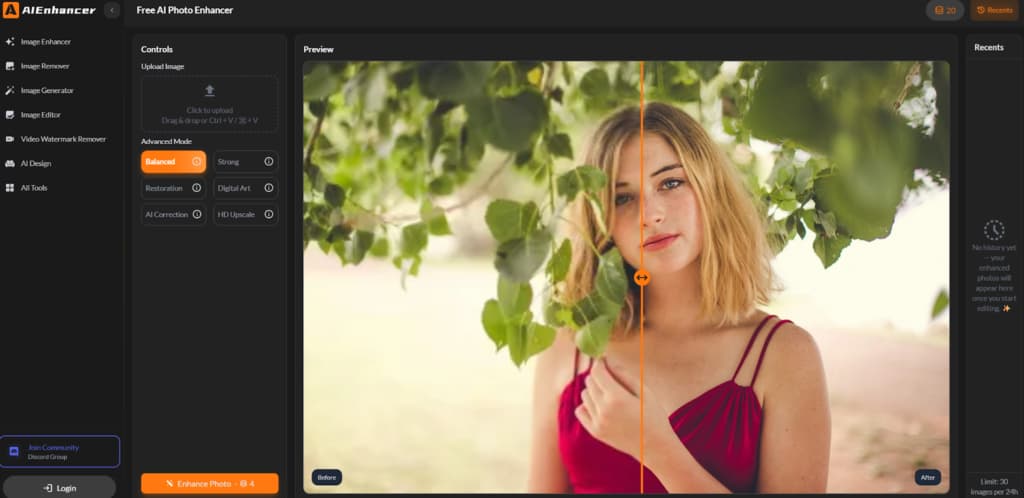
Choose AIEnhancer for a specific problem set. The photo has no major physical damage. The issue is technical quality. The scan is noisy, the details are soft, the colors are muted. This free online tool is engineered for clarity enhancement. It focuses on sharpening, denoising, and balancing tones. It’s a fix for weak digital files, not for damaged heirlooms.
How It Improves Clarity Without Deep Structural Repair
The tool applies targeted filters. It reduces pixel-level noise and tries to accentuate edges that have been blurred. The adjustments are broad but less aggressive than Nero AI. It aims for a cleaner, sharper version of what’s already there.
Its function set is narrow and focused:
- Noise reduction across the image;
- Detail enhancement in soft regions;
- Color and contrast balancing;
- Fully automated browser-based processing.
It performs decently within its lane. But it has a critical weakness: real physical damage. A scratch or stain will pass through mostly untouched, perhaps just slightly softened. It’s the wrong tool for that job.
5. PhotoBooth
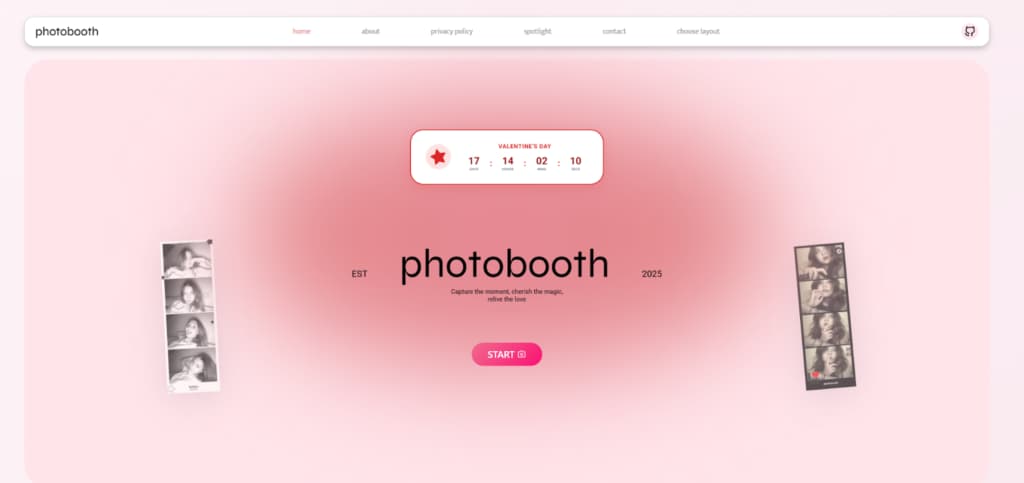
PhotoBooth is for minimal effort on minimal problems. The photo is just a bit dull, dusty, or faded. You want to brighten it up in your browser without any downloads or learning curves. This free online service offers the most basic level of automated correction. It’s a quick polish, nothing more.
What Lightweight Online Restoration Can And Cannot Do
The tool applies elementary adjustments. It slightly boosts contrast, reduces overall dust specks, and maybe adds a hint of vibrancy. The processing is instant because the changes are superficial.
Its capabilities are strictly limited to light maintenance:
- Basic correction of faded and dull images;
- Light dust and minor defect reduction;
- Fast processing without software installation;
- Output optimized for screens rather than print.
It is utterly unequipped for serious damage. A crack or a large stain will remain completely visible. Honestly, it’s only useful for giving a basically sound photo a little more life for viewing on a monitor. For anything substantive, you must look elsewhere.
Final Takeaways: Match the Tool to the Damage
Selecting a tool is a diagnostic exercise. Ignore generic claims about “best” restoration. Look at your photo. If the primary issue is physical defects on the print, use Renew Photo. For a fast visual refresh of a tired-looking image, RetroFix works. When a photo is both damaged and of poor quality, requiring heavy combined cleanup, Nero AI is the intensive option.
If the main problem is digital noise and softness in an otherwise intact file, AIEnhancer handles that. And for the simplest, quickest brightening of a dull image directly in a browser, PhotoBooth will do. Match the problem. Choose the specialist.